

Coverage Checker
Coverage Checker
Coverage Checker is the quickest way to verify patient coverage. With Coverage Checker, users have access to Nirvana's suite of APIs with minimal setup. Coverage Checker runs on the same Eligibility AI as Nirvana's integrated platform, which improves over time with more exposure to different plans.
General Overview
Coverage Checker can be used to verify coverage for a patient. It checks if a policy is active and provides the policy's network-specific benefit information, including policy information and patient cost share estimates. Coverage Checker supports both individual and bulk checks:
- Individual checks are useful for processing patient eligibility one-by-one or in real time (e.g., when a patient calls to ask what their coverage is).
- Bulk checks are useful for checking a high volume of patients (e.g., when exporting patient insurance information from one system in a batch). Using bulk checks, you may check up to 2,000 patients per batch.
Running an Individual Check (Standard)
To check one patient at a time once you've successfully logged in, your screen should resemble the image below.
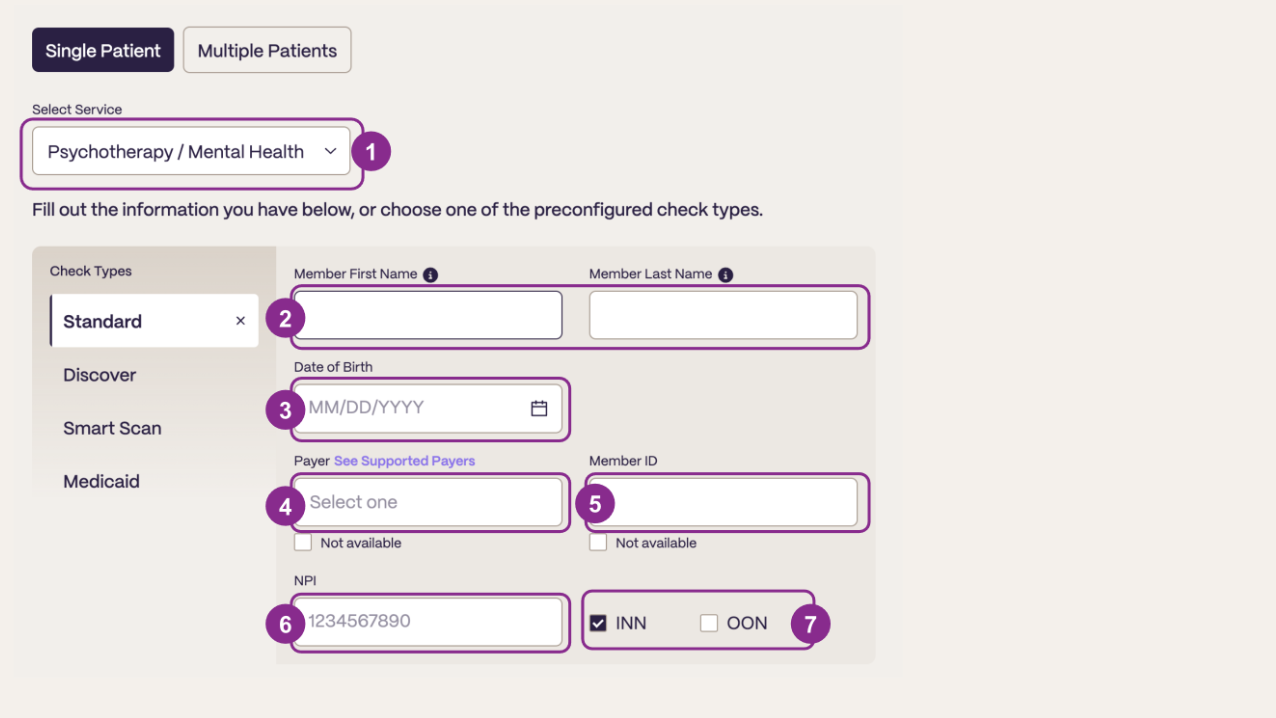
- Select the service relevant to your organization from the drop down (e.g. Psychotherapy / Mental Health).
- Your organization's Customer Success Manager can help clarify if you are unsure
- Enter the first name and last name of the patient you would like to check
- Enter the patient's date of birth
- Note: You should always enter the DOB and name of the patient who is receiving care, even if they are a dependent/beneficiary of a policy
- While first and last name are optional, it is recommended to enter them if you have the information, to increase the likelihood of a successful check
- Select the payer, either by searching the name or Nirvana Payer ID
- Your organization's Customer Success Manager should have shared with you a payer mapping reference document to locate the Nirvana Payer ID. You can also review our supported payer list here. If you're not sure what this is, reach out to your Customer Success Manager for guidance.
- Enter the insurance member ID of the patient you would like to check
- Nirvana will prepopulate your organization's group NPI by default. To use a different NPI, click into the field and enter the 10-digit NPI you want to use
- Check "INN" for a patient who is in-network or "OON" for a patient who is out-of-network
-
If unknown, select "INN"
-
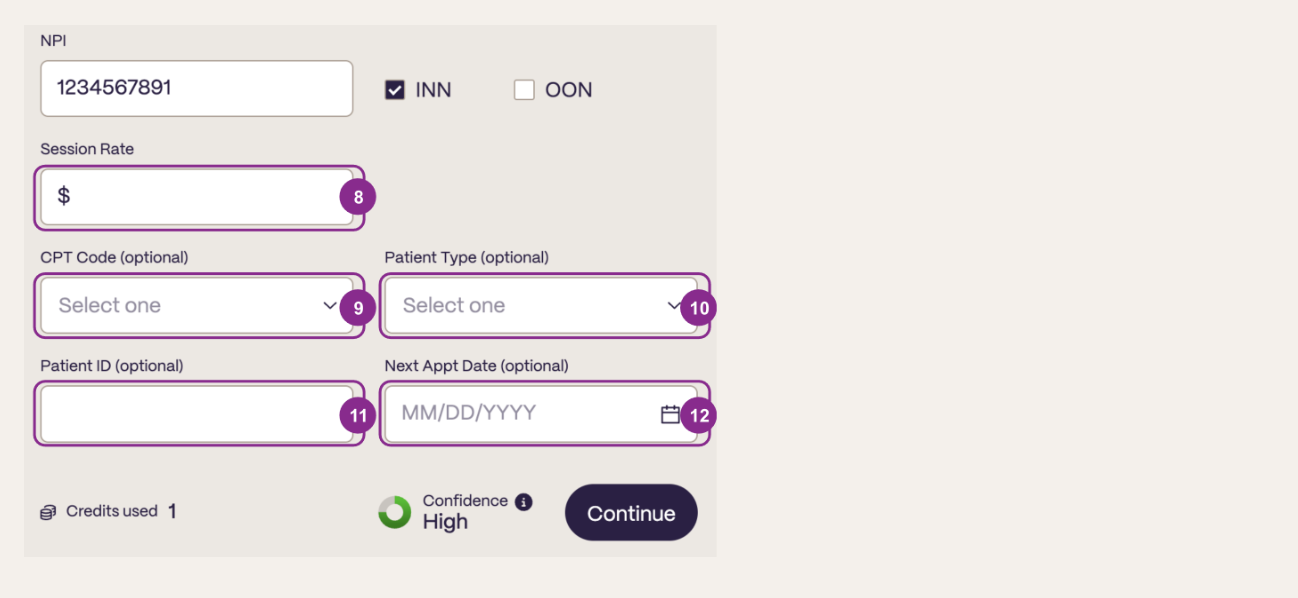
- Enter the session rate
- If unknown, use a default value (such as $100) and disregard expected member obligation, expected payer obligation, sessions before deductible, and sessions before OOP max after the check is run
- (Optional) Select the CPT code of the procedure being performed
- Nirvana-supported CPT Codes will populate in the dropdown
- If unknown, leave blank
- (Optional) Select the patient type
- If you'd like to filter your verifications by patient type, available options are: New Patient, Prospect, Existing Patient
- (Optional) Provide your organization's patient ID or other identifier
- If you'd like to filter or search your verifications by a unique patient identifier, provide the relevant ID. This can be a combination of either numbers or letters
- (Optional) Provide next appointment date
- If you'd like to filter or search your verifications by appointment date, provide the date. You can either enter the date in MM/DD/YYYY format or click the calendar icon to select from a calendar view
- Click "Continue" to check the patient's coverage
Running a Different Individual Check Type (Discover, Smart Scan, Medicaid)
In case you don't have all the information necessary to run a Standard check, you can select a different check type by clicking different options from the left hand menu. Each check type has slightly different required fields (more details in table below) but has a very similar design flow as the standard check above.
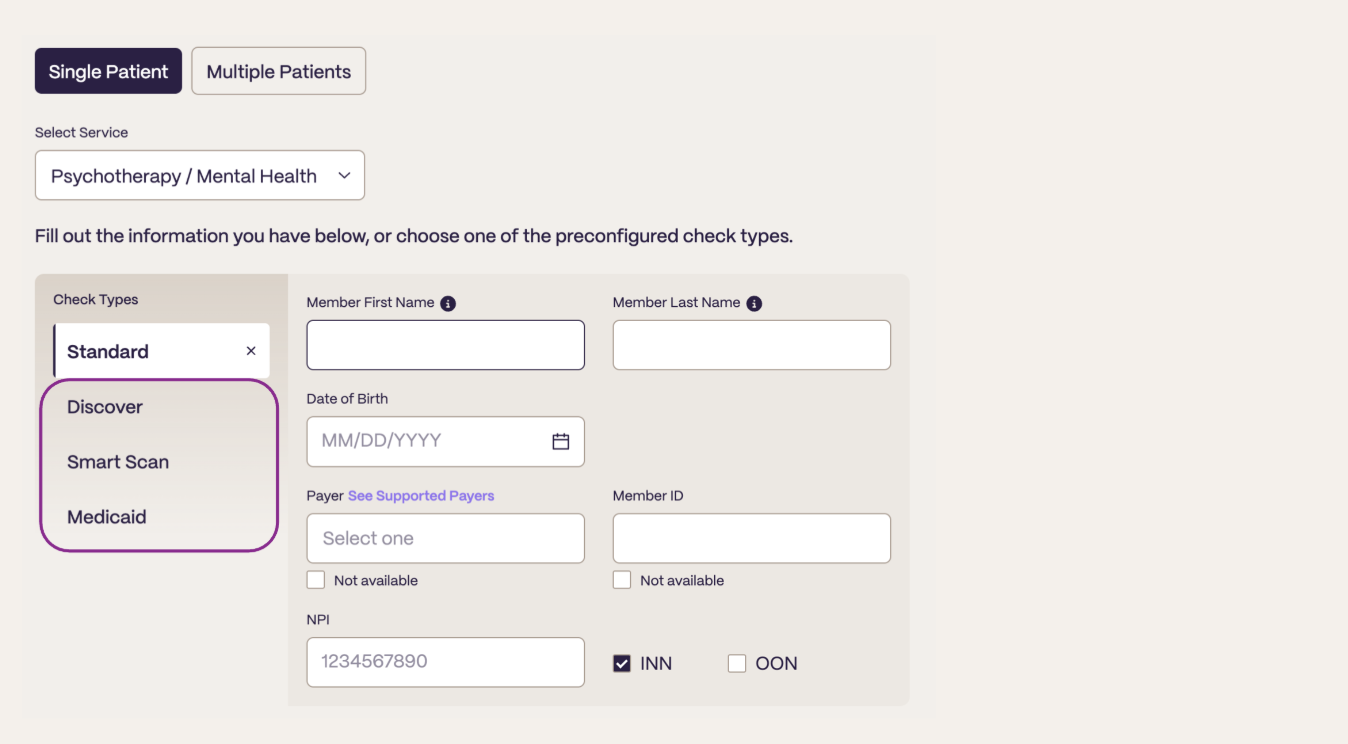
More details about each check type can be found here:
| Check Type | Required Request Fields | Response Fields |
|---|---|---|
| Standard | Member ID, Payer, Member Name, Date of Birth, NPI, INN or OON selection, Service, Session Rate | Patient demographics (name, DOB, address, gender for subscriber); Policy information (plan name, group name/number, plan effective dates, plan type, insurance type, TPA details, additional policies); Financials (benefit structure, copay, coinsurance, deductible, remaining deductible, OOP max, remaining OOP max, member obligation, QMB status); Telehealth financials (benefit structure, copay, coinsurance, member obligation) |
| Discover* | Payer, ZIP code, Member Name, Date of Birth, NPI, INN or OON selection, Service, Session Rate* | Patient demographics; Policy information (plan name, group name/number, plan effective dates, plan type, insurance type, TPA details) |
| Smart Scan* | ZIP code, Member Name, Date of Birth, NPI, INN or OON selection, Service, Session Rate* | Patient demographics; Policy information (plan name, group name/number, plan effective dates, plan type, insurance type, TPA details) |
| Medicaid | State, Member Name, Date of Birth, NPI, Service | Patient demographics; Medicaid policy information (payer, member ID, managed care organization, plan type, plan name, group name, plan effective dates); Financials (benefit structure, copay, coinsurance, deductible, remaining deductible, OOP max, remaining OOP max, member obligation, QMB status) |
- When a Discover or Smart Scan check is successfully run, OneVerify will automatically run a subsequent Standard check to also recover policy financials (which is why session rate is required). This extra check is provided at no extra charge for the remainder of 2025.
Viewing Results of an Individual Check
When a successful check is complete, you'll see a single policy view. As you scroll down the page, you'll see the following sections:
-
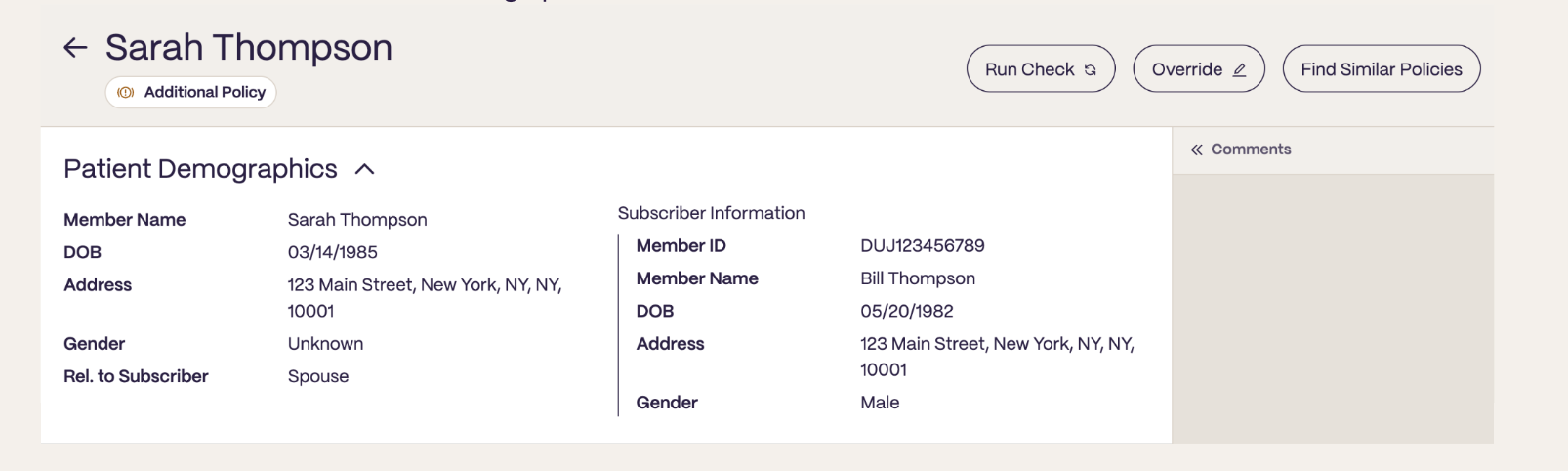
The Patient Demographics panel provides information about the patient that was recovered from the payer. This includes the member name, date of birth, address, gender, and relationship to subscriber, as well as any data corrections that were detected.
-
On the right hand side of the panel, subscriber information is provided. In cases when the searched member was a spouse or dependent, the member demographic information may differ from the subscriber demographic information.
-
Scroll down. If the patient is located, you'll see a Policy panel with various policy details. This includes everything from coverage and eligibility dates, plan type, plan name, group name, group ID, insurance type, detected third party administrators/carveouts, and detected additional policies.
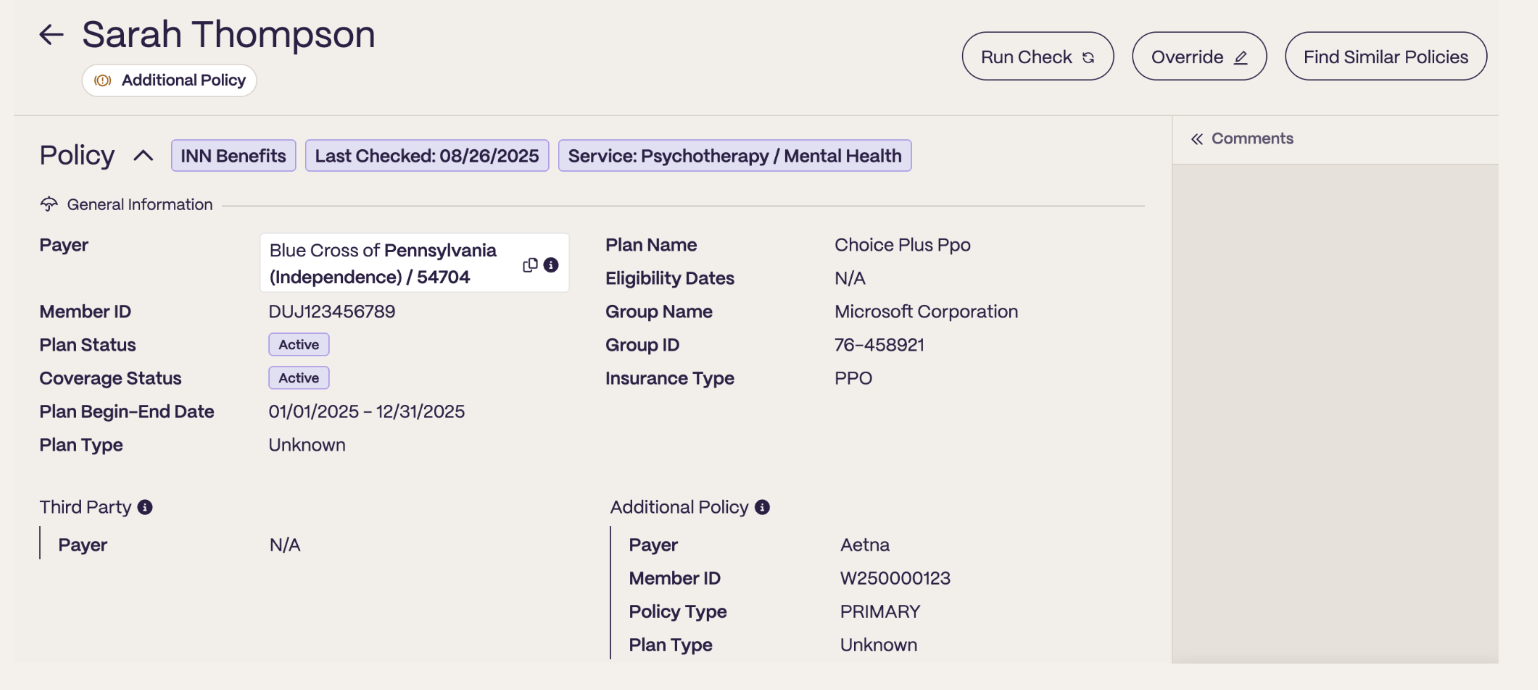
-
We automatically alert you to preset flags and data corrections that were detected.
-
Look for the small black "i" icon next to any flag. Hover over it to see a tooltip explaining the issue or data correction detected. In the example below, we detected an Additional Policy (pertinent for coordination of benefits) and also automatically determined which payer to route to based on the BCBS member ID prefix.
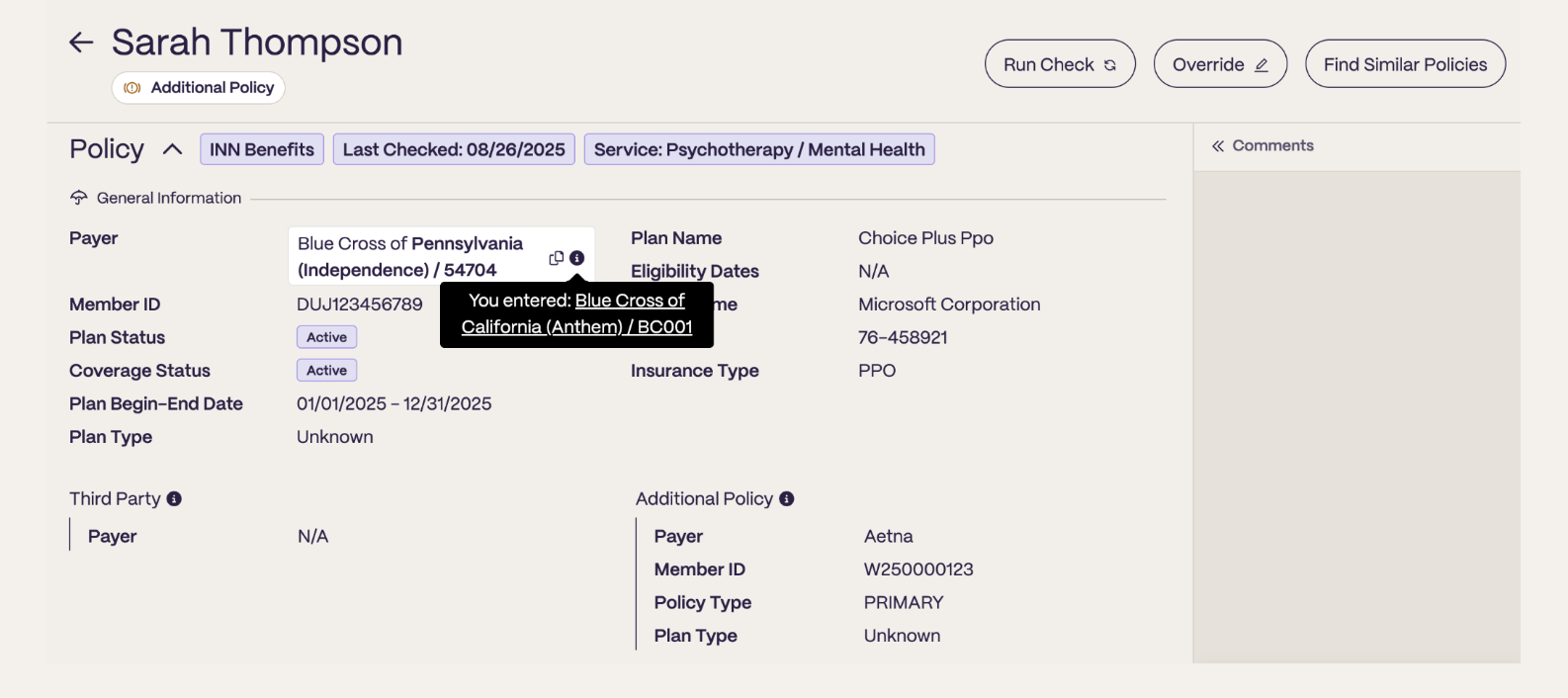
-
Scroll down to the bottom of the Policy panel. Here we provide:
-
Financials (benefit structure, coinsurance, copayment, deductible and OOP max, remainings) — refers to in-office benefits
-
Obligation details (member obligation, payer obligation, QMB status, and remaining sessions) — refers to in-office benefits
-
Telehealth financials (coinsurance, copayment, benefit structure, and member obligation)
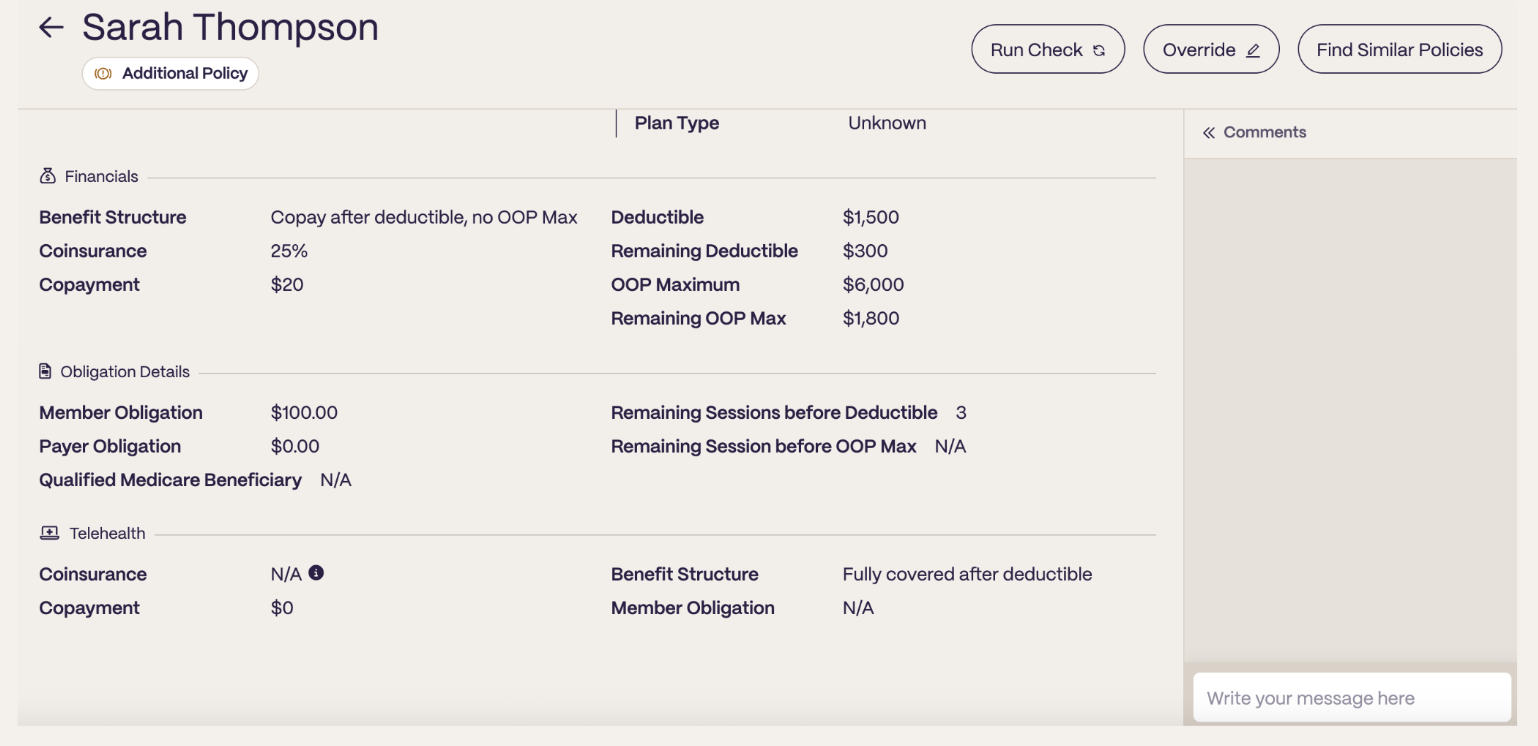
-
Running bulk checks
To run up to 2,000 eligibility checks at once, you can use Coverage Checker's bulk function. We recommend using Google Chrome. The browser tab running OneVerify must remain open during the bulk check, which may take about 60 minutes if running 2,000 checks.
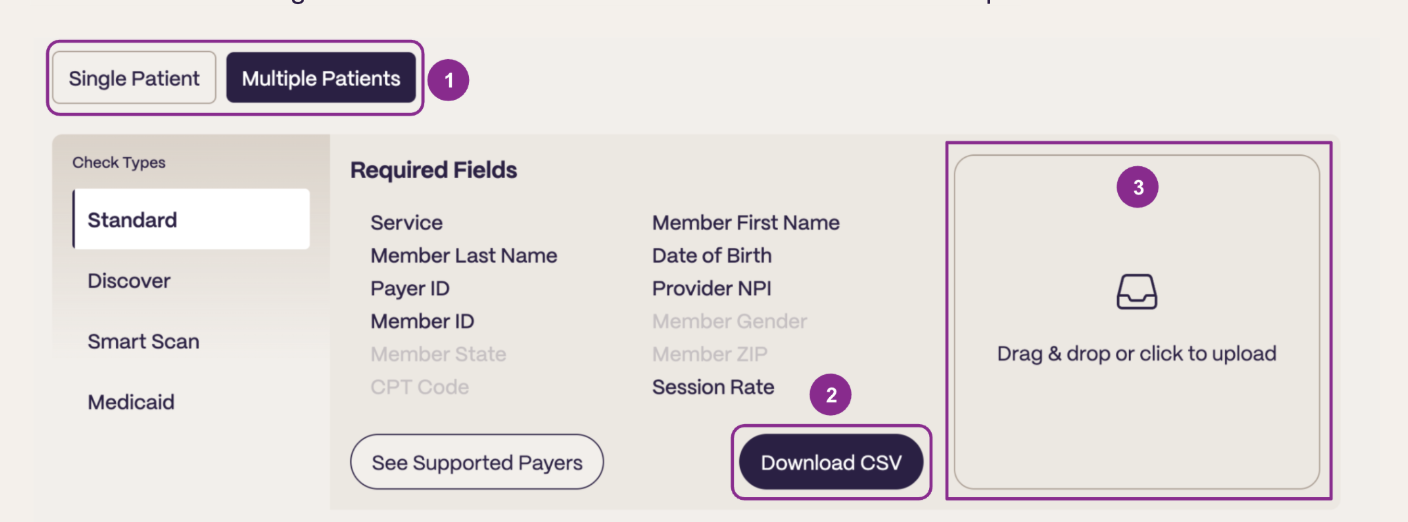
- Toggle to the "Multiple Patient" option
- Click the "CSV Template" button which will prompt a download that you can use for the bulk checks.
- Note: each check type has its own template.
- Drag and drop your bulk CSV to trigger ingestion. Data for the bulk check should align to the template.
Here are the key fields you will need to fill out the template for a Standard check:
- Service — 2 or 3 letter code for the service or modality for the relevant check. The template includes an explanation of all options.
- Provider NPI — Group NPI first; ok to add individual NPIs as you add rate configurations, or have specific payer contracts that apply to only one NPI.
- Provider Session Cost — Can be a placeholder, or configured to ensure obligation math adds up. Please note that if you use a placeholder, you should ignore the values we return for member and payer obligation.
- Payer ID (supported payer list) — Use Nirvana Payer IDs (or mappings provided by your Customer Success Manager).
- Member ID — Member or Subscriber ID of the member being checked (not necessarily the policy holder)
- Member DOB — Use text format to ensure MM/DD/YYYY or YYYY-MM-DD.
- Member First Name — First name of patient
- Member Last Name — Last name of patient
- CPT Code (optional) — Recommended to include when the procedure code is known. The more detail we have, the better chance we have of returning the most accurate check. However, it's not required, as benefits are typically consistent across CPT codes under a selected service.
- Network (optional) — Options: "IN" for INN, "OUT" for OON, or "IN_OUT" for both.
Sample Input
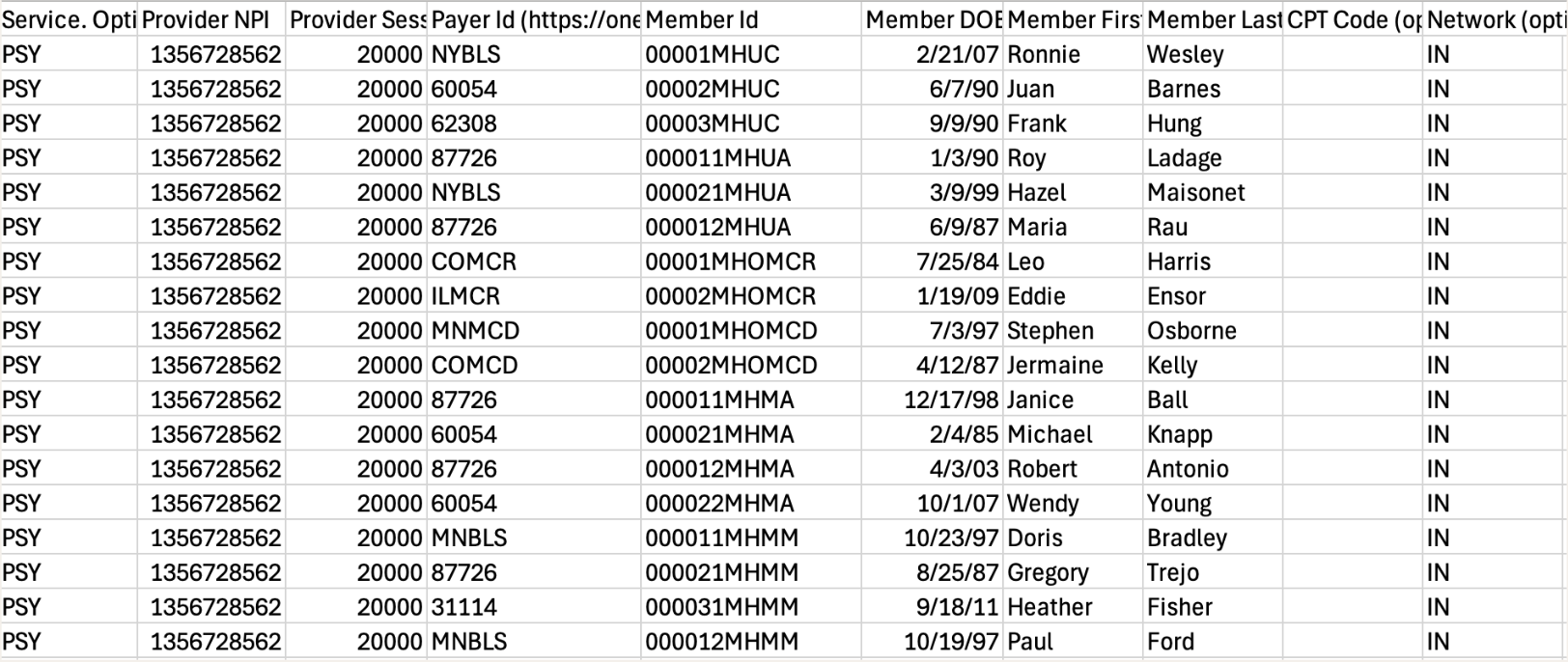
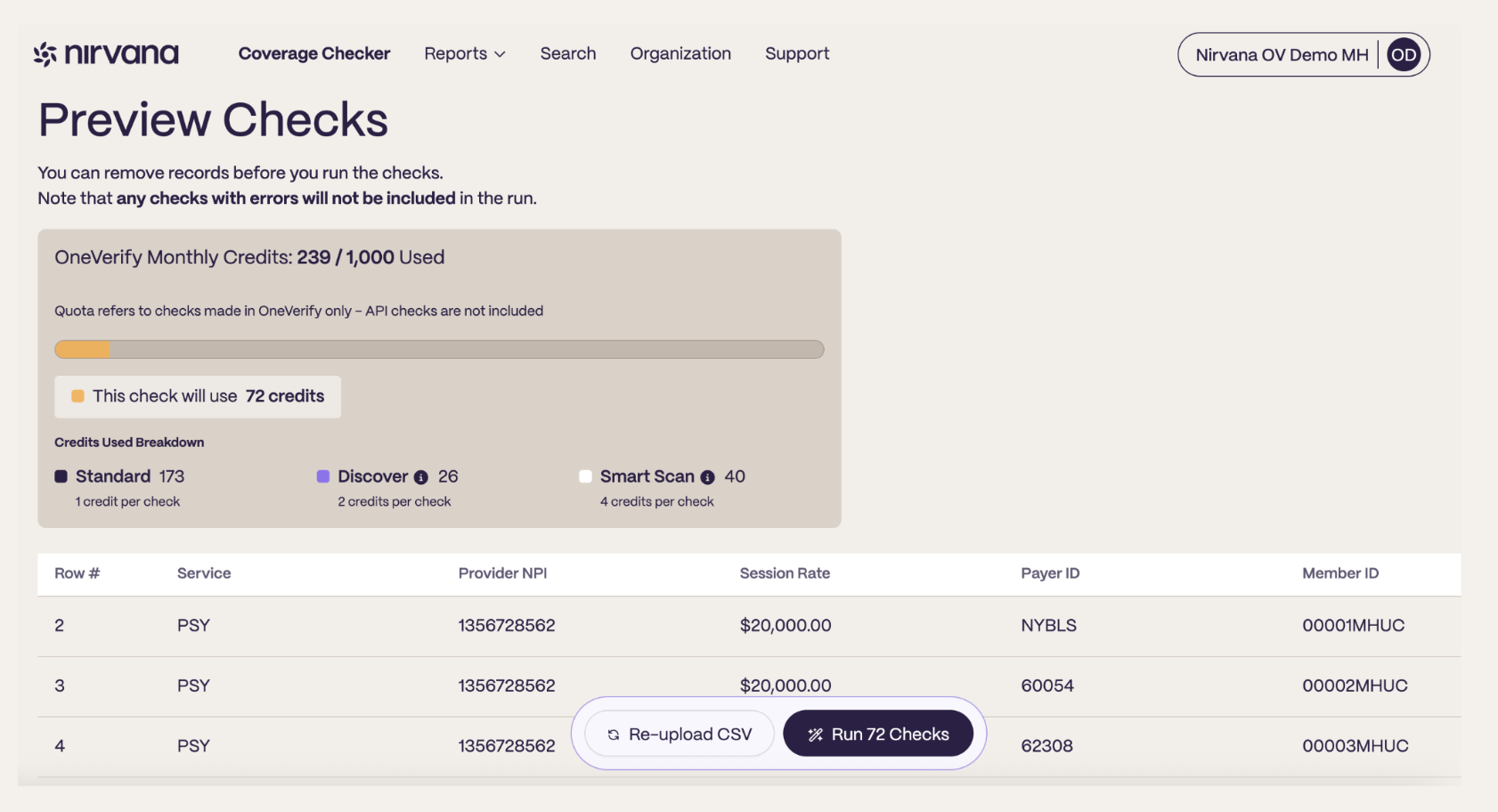
After you've taken your CSV and dragged and dropped it into the Coverage Checker, you will see an animation of the ingestion followed by a preview screen to ensure all the data is input correctly before you can run your checks. If it all looks good, click "Run Checks."
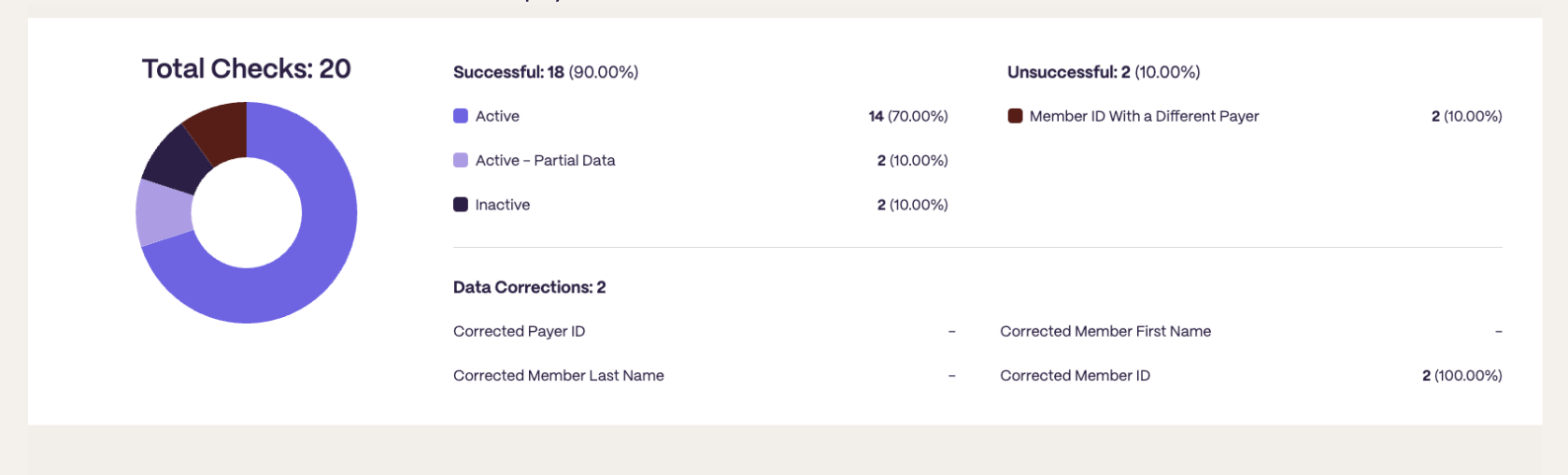
After it runs, you will get a breakdown of checks by success, and any data corrections we noted when we found the member with the payer.
Exporting results
Coverage check results can be exported via CSV for individual checks or bulk checks. You can do this by clicking "Download CSV with results," and it will display all the information we were able to gather.
Updated about 1 month ago