

Account Setup
Creating an account
Creating an account is simple and should take less than 3 minutes.
To create an account, please follow these steps:
- Go to oneverify.meetnirvana.com/auth/register
- Enter the email address you would like to be the account holder and select "Get started"
- Enter your first name, last name, and a strong password that meets the outlined password requirements
- Review our BAA and Terms & Conditions, select the checkbox to indicate agreement with each, and click "Create an Account"
- Open the email sent to you by Nirvana and select "Confirm Email Address"
- If you don't see the email in your inbox, check your spam folder
- Log in to your account
- Upon successful login, you'll see a page which reads "You'll need to be part of an organization to proceed."
- Contact your organization's Customer Success Manager to be assigned to your organization
- Once you've been assigned, you can begin setting up your practice and running checks!
No license capsNirvana does not cap OneVerify licenses, so you may assign as many individuals in your organization as needed. However, please note that each check conducted through Coverage Checker will count towards your organization's monthly check utilization.
Users & Permissions
There are 3 user types you can assign to users of your OneVerify product: Owner, Admin, and Biller. The account Owner is typically the first user added by your Customer Success Manager, and they have the ability to add additional users to your organization as needed.
Here are the differences in access for each user type:
| User / Function | Owner | Admin | Biller |
|---|---|---|---|
| Transfer Practice Ownership | ✅ | ||
| Manage Billing | ✅ | ||
| Run Coverage Checks | ✅ | ✅ | ✅ |
| Run Bulk CSV Coverage Checks | ✅ | ✅ | ✅ |
| Report Coverage Check Errors | ✅ | ✅ | ✅ |
| Manage Practice Users and Groups | ✅ | ✅ | |
| Manage Payer Configuration | ✅ | ✅ | |
| View Payer Configuration | ✅ | ✅ | ✅ |
| Assign Workflow Tasks | ✅ | ✅ | |
| Change Status of Workflow Tasks | ✅ | ✅ | ✅ |
Adding users
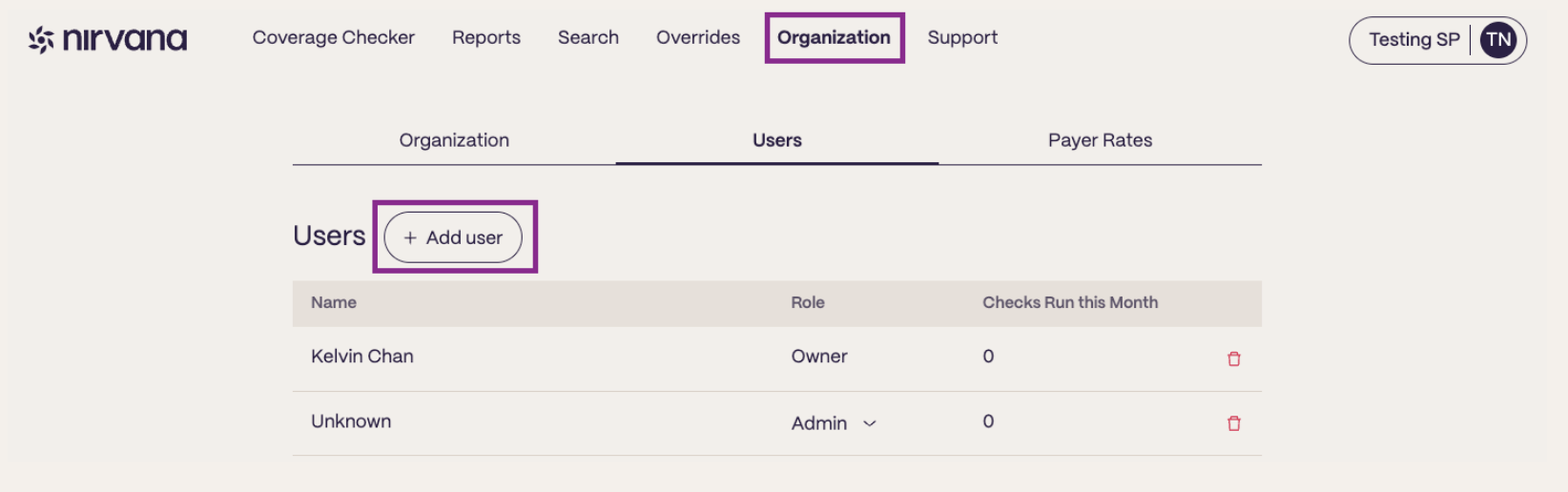
From any login screen, if you click on the "Organization" tab it will bring you to a screen where you can add users:
Multi-factor authentication
OneVerify requires multi-factor authentication (MFA) to provide an additional layer of security for your account. MFA requires you to verify your identity using two different authentication factors: something you know (your password) and something you have (your mobile device).
OneVerify currently supports two MFA methods:
- SMS — Receive a one-time verification code via text message to your registered mobile number. This code must be entered after your password to complete the login process.
- Authenticator App — Use a third-party authenticator application (such as Google Authenticator, Microsoft Authenticator, or Authy) to generate time-based verification codes. This method works even without cellular service and provides enhanced security compared to SMS.
Updated about 1 month ago